Drawing View Tools
In This Topic
The drawing view Interactor is populated with tools that perform different actions upon the drawing view and its content (see the Interactors topic for a fundamental overview of interactors).
Tools Overview
All tools that reside inside in the drawing view Interactor are defined in the Nevron.Nov.Diagram.DrawingTools namespace.
Most commonly you will have to enable a given tool and disable all others. To do so, use the SingleEnableTool of the interactor:
| Enable the Create Rectangle tool |
Copy Code
|
drawingView.Interactor.SingleEnableTool(NCreateRectangleTool.NCreateRectangleToolSchema, true);
|
The line of code above will activate the "Create Rectangle" drawing tool and disable all others like shown on the following image:
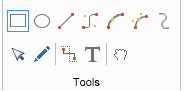
To enable and disable tools you can also use the EnableTool, EnableAllTools, DisableTool and DisableAllTools methods.
Available Tools
Following is a brief overview of all tools:
| Tool Class |
Description |
|
General Tools
|
| NPointerTool |
A composite tool that aggregates the following atomic tools:
NCreateGuidelineTool - creates a horizontal or vertical guideline, if the user drags from the drawing view rulers.
NDragHandleTool - implements the interactive dragging of handles.
NClickSelectTool - selects the clicked shape
NRectangleSelectTool - selects the set of shape hit by a visually defined rectangle.
NMoveTool - moves the currently selected shapes
|
| NPanTool |
A tool that implements interactive panning (scrolling) of the currently active page. |
| NFormatPainterTool |
A tool that copies and applies text and geometry formatting to selected shapes. |
|
Create Element Tools
|
| NCreateRectangleTool |
Creates a rectangle shape inside the active page |
| NCreateEllipseTool |
Creates an ellipse shape inside the active page |
| NCreateLineTool |
Creates either a line segment that continues a previously drawn open figure, or creates a simple line shape. |
| NCreateCubicBezierTool |
Creates either a cubic bezier segment that continues a previously drawn open figure, or creates a simple cubic bezier shape. |
| NCreateArcTool |
Creates either an arc segment that continues a previously drawn open figure, or creates a simple arc shape. |
| NCreateEllipticalArcTool |
Creates either an elliptical arc segment that continues a previously drawn open figure, or creates a simple elliptical arc shape. |
| NCreateNurbsTool |
Creates NURBS curves and can be used as a freehand drawing tool. |
| NCreateConnectorTool |
Creates a routable connector. |
| NCreateTextTool |
Creates a text shape. |
|
Ambient Tools
|
| NContextMenuTool |
Shows a context menu for the currently selected page items. |
| NScrollAndZoomTool |
Implements mouse wheel scrolling and zooming of the active page. |
| NInplaceEditTool |
Starts in-place editing of the shape that is double-clicked. Provides the following properties that control its behavior:
- ShowMiniToolbarOnEditStart - determines whether to show the rich text formatting mini toolbar above the shape when inplace editing is started. By default set to false.
- ShowShapeTrackersAboveTextEditor - determines whether to show the shape trackers above the text editor. By default set to false.
- InplaceEditMouseButtonEvent - determines the mouse button event on which the context menu is shown. By default set to ENMouseButtonEvent.LeftButtonDoubleClick.
|
| NDragDropTargetTool |
Extends the Drop target functionality of drawing views, by providing them with the ability to handle dropped library clippings, text, images etc. |
Tools Customization
To change the behavior of a tool you should get it using the GetTool method of the drawing view's interactor and change the tool's properties, for example, to make the inplace edit tool always show a rich text mini toolbar above the edited text and show shape trackers above the text editor, you should use the following code:
| Changing Tool Behavior |
Copy Code
|
NInplaceEditTool inplaceEditTool = drawingView.Interactor.GetTool<NInplaceEditTool>();
inplaceEditTool.ShowMiniToolbarOnEditStart = true;
inplaceEditTool.ShowShapeTrackersAboveTextEditor = true;
|
To customize a drawing tool even furhter, you should create a class that inherits the tool and override the properties and methods you are interested in. Then you should replace the original tool with your new custom tool using the GetTool and ReplaceTool methods of the drawing view's interactor. The same methods are also available for composite tools, which are tools that consist of other tools. The first parameter of the ReplaceTool method specifies the new tool to use and the second parameter specifies whether to enable the tool or not.
For example, to replace the pan tool and the click select tool of a NOV Diagram, use the following code:
| Replacing Tools |
Copy Code
|
// Replacing a tool in the interactor
CustomPanTool customPanTool = new CustomPanTool();
drawingView.Interactor.ReplaceTool<NPanTool>(customPanTool, false);

// Replacing a tool in a composite tool
NPointerTool pointerTool = drawingView.Interactor.GetTool<NPointerTool>();
pointerTool.ReplaceTool<NClickSelectTool>(new CustomClickSelectTool(), true);
|
See Also
