Page Navigator
In This Topic
The NOV Diagram for .NET - Page Navigator is a widget positioned in the bottom-left corner of the drawing view. It allows users to switch between different drawing pages and manage their order via drag-and-drop functionality. Additionally, the Page Navigator supports adding new pages and provides per-page context menus for quick operations, including deleting, renaming, duplicating, and configuring grid, rulers, and page setup.
The Page Navigator by default displays both the foreground and the background pages of the drawing, currently displayed by the drawing view. The foreground pages are displayed fist, and the background pages are displayed after them, in italic text style. The following image is an example of the outlook of the page navigator:
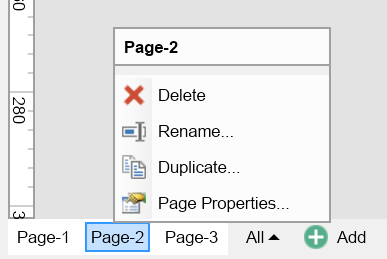
The Page Navigator is represented by the NPageNavigator class, an instances of which can be obtained from the NDrawingView - PageNavigator property, as shown in the following example:
| Getting the Page Navigator of a Drawing View |
Copy Code
|
using Nevron.Nov.Diagram.UI;
...
NDrawingView drawingView = new NDrawingView();
NPageNavigator pageNavigator = drawingView.PageNavigator;
|
Action Permissions
The following properties of the page navigator control which actions are allowed:
- AllowAddPage - specifies whether adding and duplicating pages is allowed. When set to false, both the "Add" button and the "Duplicate" context menu item are hidden.
- AllowDeletePage - specifies whether deleting pages is allowed. When set to false, the "Delete" context menu item is hidden.
- AllowEditPage - specifies whether page editing is allowed. When set to false, the "Rename Page", "Grid and Rulers" and "Page Properties" commands are hidden.
- AllowReorderPages - specifies whether pages can be reordered through the page navigator.
The page context menu is also not shown, if all commands inside it will be disabled. The following code prohibits all operations with the pages through the page navigator.
| Hide the Add button and the page context menu |
Copy Code
|
drawingView.PageNavigator.AllowAdd = false;
drawingView.PageNavigator.AllowDelete = false;
drawingView.PageNavigator.AllowEditPage = false;
drawingView.PageNavigator.AllowReorderPages = false;
|
Showing/Hiding the Foreground and Background Pages
The ShowForegroundPages property controls the visibility of the foreground pages in the page navigator. Similarly, the ShowBackgroundPages property control the visibility of the background pages. By default the page navigator shows both the foreground and the background pages. The following code example hides the background pages:
| Hide the background pages |
Copy Code
|
drawingView.PageNavigator.ShowBackgroundPages = false;
|
Hiding the Whole Page Navigator
To hide the whole page navigator, use the following code:
| Hide the page navigator completely |
Copy Code
|
drawingView.PageNavigator.Visibility = ENVisibility.Collapsed;
|
See Also
