Table Scale
In This Topic
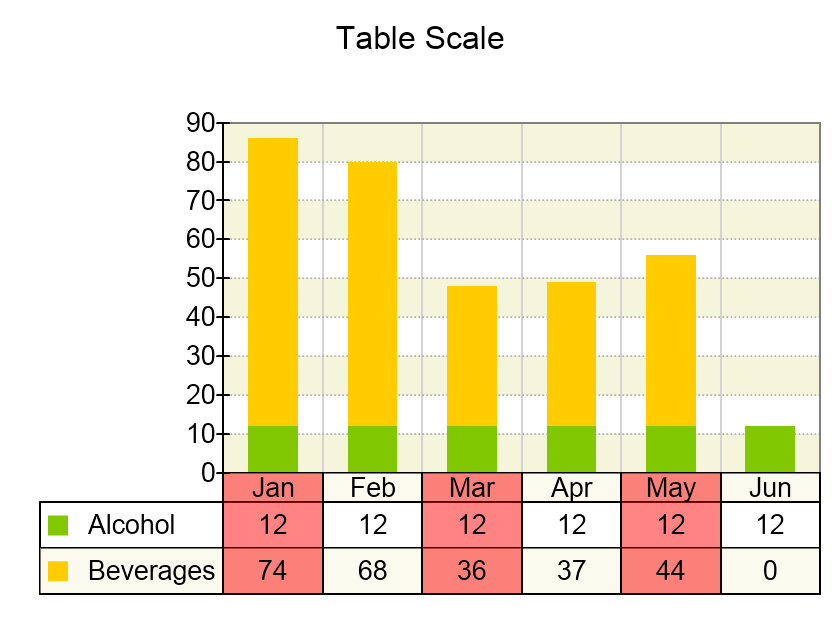
The table scale is a type of ordinal (categorical) scale where each category can be annotated by one or more rows of data. The categories and their respective rows of data form a table that can also optionally contain column and row headers. This type of scale is commonly used in stack and cluster charts, where several series display data for a single category. The following image shows a table scale in combination with a stack bar chart:
Creating a Table Scale
You create a table scale by creating an instance of the NTableScale class. The following code shows how to create a table scale and assign it to the primary X axis of a Cartesian chart:
| C# |
Copy Code
|
NCartesianChart chart = (NCartesianChart)chartView.Surface.Charts[0];
NTableScale tableScale = new NTableScale();
chart.Axes[ENCartesianAxis.PrimaryY].Scale = tableScale;
|
Adding Table Rows
You add rows to the table scale by adding instances of the classes derived from the NTableScaleRow base abstract class to the scale Rows collection. The following table lists the currently available options:
| Class |
Description |
| NCustomTableScaleRow |
Represents a table scale row, that provides custom data for each row. |
| NSeriesTableScaleRow |
Represents a table scale row that provides data for the table scale row from a reference series of data points. This table row is useful when you want to synchronize the data from the series displayed on the axis with the table scale row information. |
Add Custom Table Rows
The following code adds a row of custom data (in this case, the abbreviated names of the months in a year):
| C# |
Copy Code
|
NCustomTableScaleRow customRow = new NCustomTableScaleRow();
customRow.Items = new NDomArray<string>(new string[] { "Jan", "Feb", "Mar", "Apr", "May", "Jun", "Jul", "Aug", "Sep", "Oct", "Nov", "Dec" });
m_TableScale.Rows.Add(customRow);
|
Add Series Data Table Rows
The following code shows how to add a row of data that uses the same formatting as the referenced series data point labels:
| C# |
Copy Code
|
NSeriesTableScaleRow seriesRow = new NSeriesTableScaleRow();
seriesRow.Series = someSeries;
tableScale.Rows.Add(seriesRow);
|
The information that's presented in each row cell is controlled from the series legend format property - for example:
| C# |
Copy Code
|
series.Legend.Format = "<percent>";
|
The format string are the same you can use in legend label formatting. This type of table row also supports left / right headers:
| C# |
Copy Code
|
seriesRow.ShowLeftRowHeader = true;
seriesRow.ShowRightRowHeader = true;
|
The left/right headers display in the same way as the series legend items.
Label Style
The base NTableScaleRow class exposes three properties that allow you to modify the appearance of row cell labels. These properties are called CellLabelStyle, LeftHeaderLabelStyle and RightHeaderLabelStyle. These properties affect the cell, left header and right header text style respectively. The following code snippet shows how to change the font size of row labels:
| C# |
Copy Code
|
|
seriesRow.CellLabelStyle.TextStyle.Font = new NFont("Arial", 13);
|
Table Gridlines
The HorizontalGridlineStroke and VerticalGridlineStroke properties of the table scale allow you to specify horizontal and vertical table grid lines. The following code snippet changes the table gridlines to red::
| C# |
Copy Code
|
| tableScale.HorizontalGridlinesStroke = new NStroke(1, NColor.Red); tableScale.VerticalGridlinesStroke = new NStroke(1, NColor.Red); |
Table Interlacing
The table interlace stripes feature allows you to highlight table rows or columns so that the table becomes more legible. The following code shows how to apply row and column interlacing to a table scale:
| C# |
Copy Code
|
|
NTableInterlaceStyle rowInterlaceStyle = new NTableInterlaceStyle();
rowInterlaceStyle.Type = ENTableInterlaceStyleType.Row;
rowInterlaceStyle.Length = 1;
rowInterlaceStyle.Interval = 1;
rowInterlaceStyle.Fill = new NColorFill(NColor.FromColor(NColor.Beige, 124));
tableScale.InterlaceStyles.Add(rowInterlaceStyle);
NTableInterlaceStyle colInterlaceStyle = new NTableInterlaceStyle();
colInterlaceStyle.Type = ENTableInterlaceStyleType.Column;
colInterlaceStyle.Length = 1;
colInterlaceStyle.Interval = 1;
colInterlaceStyle.Fill = new NColorFill(NColor.FromColor(NColor.Red, 124));
tableScale.InterlaceStyles.Add(colInterlaceStyle);
|
